How to open a README.md file you downloaded
What README.md is
A README.md is the instructions file that ships with almost every downloaded project, tool, code library, or template. It is usually the first thing you are meant to read: what the thing does, how to install it, and how to use it. The .md extension means markdown, a plain-text format that uses simple marks like # and ** for headings and bold text instead of hidden formatting. It is not a special file type and it cannot run anything on your computer. It is text, written by the developers, meant for you.
If the project came from GitHub
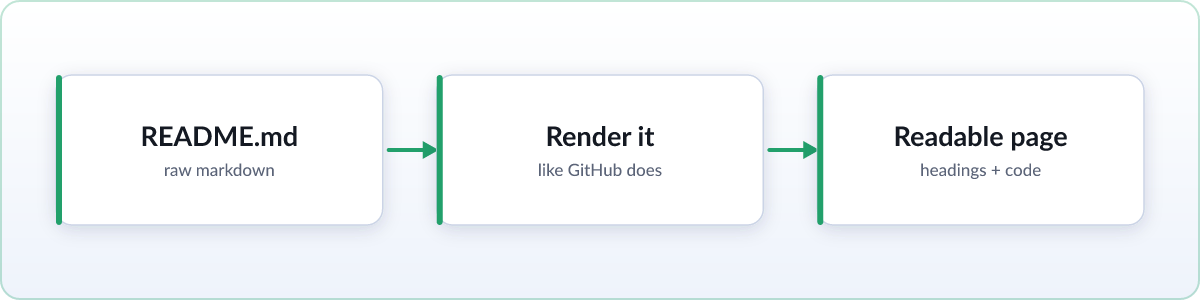
If you found this project on GitHub, you may not need any tool at all: GitHub renders the README automatically on the project's own page, formatted headings, tables, and all. Reading it there, in your browser, before you even download anything, is often the fastest option of all. The steps below are for the copy that ends up on your computer once you have downloaded or cloned the project.
Read your local copy, formatted
For a single file you just want to read once, use the free online viewer: drag README.md onto the page and it renders instantly, fully formatted, entirely in your browser with nothing uploaded.
If you find yourself opening README files regularly, for example because you download a lot of open-source tools, install the Skim extension instead. It renders every .md file automatically the moment you open it. Setup is two steps: add Skim from the Chrome Web Store, then flip Chrome's one file-access switch so the extension is allowed to read local files (Skim walks you through exactly where to click). After that, double-clicking any README.md just opens it formatted, no drag-and-drop needed.
Plain-text fallback
Notepad on Windows or TextEdit on a Mac will open a README.md file with no setup at all. You will see the raw text, including the # before headings and the [link text](url) pattern behind any links, rather than a formatted page. For a short README that is a couple of lines, this is often good enough. For a longer one with install steps, tables, or code, it gets hard to follow fast.
Common README contents decoded
Most READMEs share a similar shape, and it helps to know what you are looking at. Install commands usually sit inside a fenced code block, a section set off from the rest of the text, meant to be copied exactly as written. Small colored labels near the top, called badges, show things like build status or version number at a glance. Longer READMEs often include a table of configuration options or command flags. A markdown renderer turns all of this from raw text into something usable: code blocks get syntax highlighting and a copy button, and tables actually line up in columns instead of running together as plain text.
FAQ
Why is it called README?
Because it is the file developers want you to read first, before using or contributing to the project. The all-caps name is a convention meant to stand out in a folder listing.
Do I need a special program?
No. Any text editor opens a README.md file. A renderer, like an extension or online viewer, just makes it pleasant to read by turning the formatting marks into an actual formatted page.
Why do developers use .md instead of .txt or Word?
Markdown is plain text, so it works cleanly with version control systems like Git, and it renders consistently on GitHub, in editors, and in browsers, unlike a Word document.