How to convert markdown to PDF (free, nothing uploaded)
The short version
You do not need a special converter or an upload site to turn a .md file into a PDF. The trick is to render the markdown into a formatted page first, then use the "Save as PDF" option that is already built into your browser's Print dialog. It is free, it works offline, and your file never leaves your computer. Everything else on this page is either a power-user shortcut or a caution about the options you should skip.
Recommended: render, then print to PDF
This is the method to use for anything you care about, especially anything private. Nothing is uploaded and there is nothing to install if you use the online viewer.
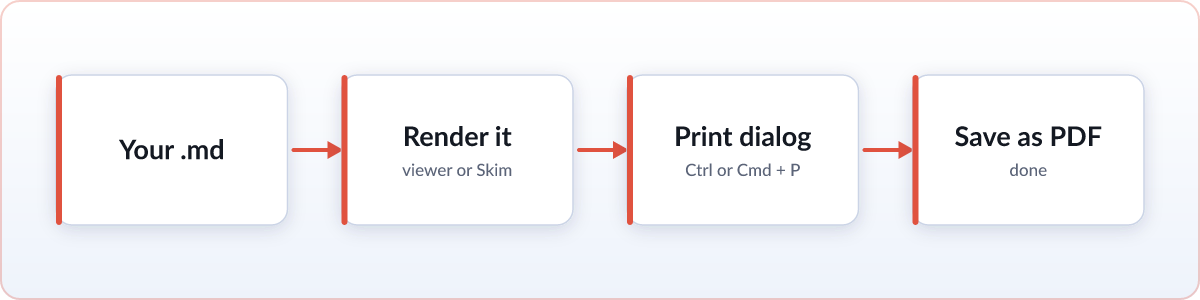
- Open your markdown file in a renderer. Drag your
.mdfile onto the free online viewer, or open it with the Skim extension if you have it. Either way the file is rendered on your own device. - Check that it looks right. Headings, tables, code blocks, and lists should all be formatted the way you want them in the final PDF.
- Open the Print dialog. Press
Ctrl+Pon Windows or Linux, orCmd+Pon a Mac. - Set the destination to "Save as PDF" (some browsers label it "Microsoft Print to PDF" or "Save to PDF").
- Click Save, choose where the file goes, and you have a PDF.
Because the page is rendered locally and the browser generates the PDF itself, the content of your document is never sent to any server. That is the whole reason this method beats the convert-online sites for sensitive work.
Get the PDF looking right
If you are printing from the Skim extension, most of this is already handled: it switches to a print layout on white, keeps headings with the text that follows them, avoids splitting tables across pages, and offers a page margin of none, narrow, normal or wide from the export button. It can also add a numbered table of contents as the first page. Ctrl+P and Cmd+P are intercepted so the browser dialog gets that same layout. If you want a file you can share rather than print, Skim also exports a single self-contained .html file with fonts, math and diagrams embedded. See the release notes for what changed.
The settings below still matter when you are printing from somewhere else, such as the online viewer or another renderer.
The Print dialog has a few settings that make a real difference to the result. It is worth opening "More settings" and checking them before you save.
- Margins. The default is usually fine, but "Minimum" or "None" gives you more usable width for wide tables and code blocks.
- Background graphics. Turn this on if you want code-block shading, colored callouts, or table borders to appear in the PDF. With it off you get plain black text on white, which prints smaller.
- Light vs dark. Switch the viewer to a light theme before printing. A dark theme can carry over and waste ink or look muddy on paper.
- Page breaks. Use the print preview to spot headings or tables that get split awkwardly across pages. Adjusting the scale slightly, or adding a blank line in the source, often nudges them into a cleaner spot.
- Scale. If the content spills onto an extra page, dropping the scale to 90 percent frequently pulls it back.
Alternatives, and their trade-offs
The render-then-print method covers almost everyone. These are worth knowing about if you convert markdown often or need to automate it.
VS Code with a markdown to PDF extension
If you already live in VS Code, an extension such as "Markdown PDF" adds a right-click "Export to PDF" command. It is convenient when the editor is already open, and it runs locally. The trade-offs: you have to install and trust a third-party extension, and its styling can differ from what you see in the built-in preview, so check the output.
Pandoc on the command line
For power users and scripts, Pandoc is the most flexible option. The basic command is:
- Install Pandoc, and a LaTeX engine if you want the default high-quality output.
- Run
pandoc file.md -o file.pdfin your terminal.
It is free, local, scriptable, and great for batch conversions or consistent templated output. The cost is setup: the PDF engine is a real install, and getting the styling exactly how you want it takes some reading. Overkill for a one-off file, ideal for a repeatable pipeline.
The one to be careful with: random upload sites
Search results are full of "markdown to PDF" websites where you paste text or upload a file and get a PDF back. They work, but understand the deal: your document is sent to someone else's server to be converted. For a throwaway file that is no big deal. For anything with client details, unreleased work, credentials, or personal information, that content has now left your machine and you have no idea what happens to it. This privacy risk is exactly why rendering locally and printing to PDF is the better default. If a file matters, keep it on your own device.
FAQ
What is the easiest way to convert markdown to PDF for free?
Render the .md file in a viewer, then open your browser's Print dialog and choose "Save as PDF". It is free, needs no extra software, and nothing is uploaded.
Does converting markdown to PDF this way upload my file?
No. When you render locally and print to PDF, both the formatting and the PDF are produced on your own device. The file never touches a server, which is why this method is safe for private documents.
How do I convert markdown to PDF on the command line?
Install Pandoc and run pandoc file.md -o file.pdf. This is ideal for automation and batch jobs, though it takes more setup than the print-to-PDF method.